The Websites list
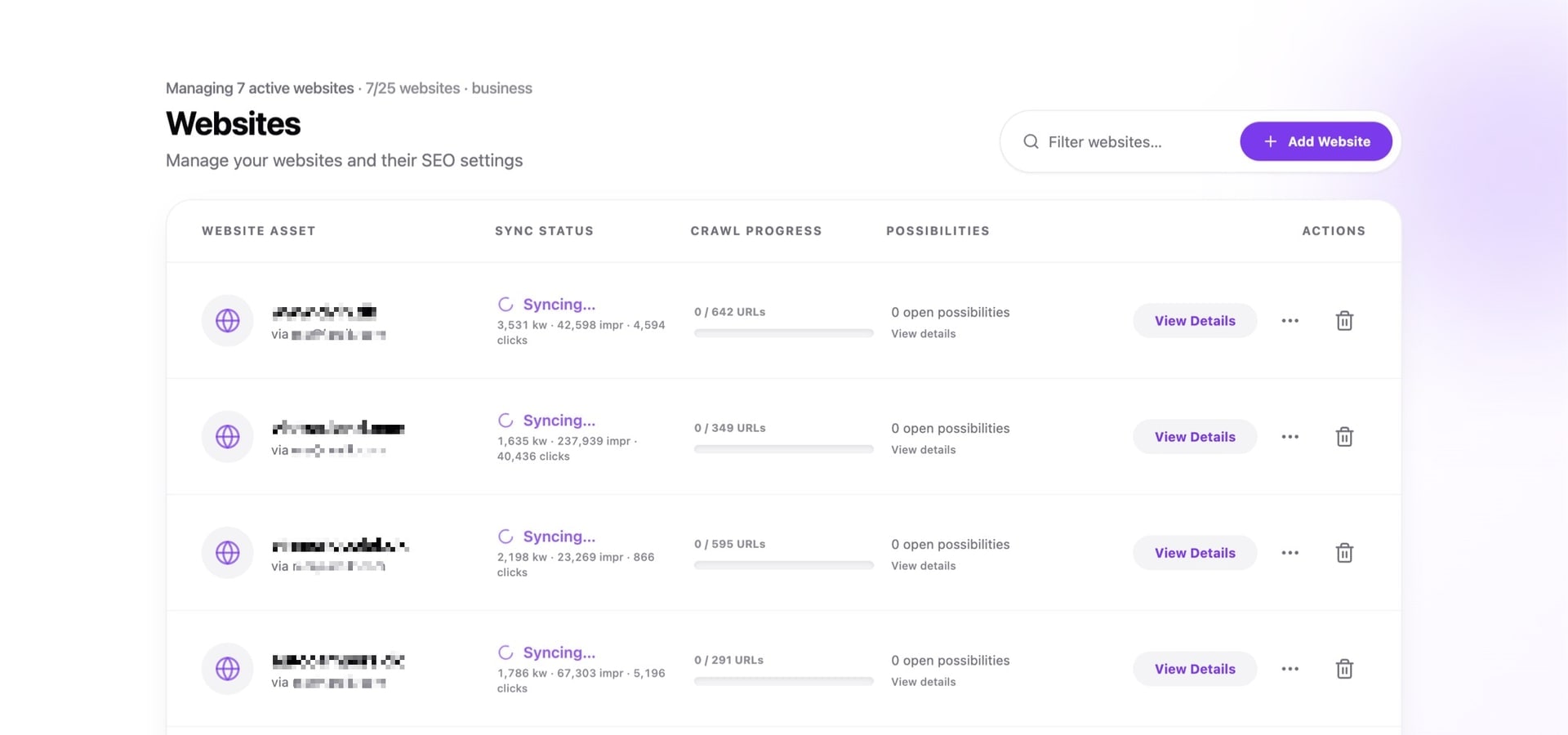
On the dashboard (/dashboard), the Websites table is your hub for every Search Console property you have connected in SEO Perception. From here you add sites, scan overall sync and crawl state, see open possibilities at a glance, and open a specific site’s workspace.
This table is only a section on the dashboard—there is no separate /websites page in the app.
Top of the page
Above the title you may see a short summary line: how many active websites you are managing, how that compares to your plan’s website limit (for example 7/25), and your tier name. Exact wording can vary with language settings.
Filter websites narrows the table by text you type. Add Website starts the flow to link another Search Console property; see Adding a website. You need a connected Google Search Console account before new properties appear.
When you have more websites than fit on one screen, the list paginates. Below the table you can choose how many sites to show per page: 10, 20 (default), 50, or 100. Your choice is remembered in this browser.
Table columns
Website asset
Each row shows the property (domain or URL prefix) and, when available, which connected account it is via—so you can tell which Google login controls that property.
Sync status
This reflects Search Console data collection for that site: for example syncing, queued, sync complete, not synced yet, or a state that needs attention (permissions or connection issues). When metrics are already stored, you may see a compact line of keywords, impressions, and clicks totals.
Crawl progress
You see how many URLs are accounted for in the crawl relative to the total (for example 0 / 642 URLs), with a progress bar. When at least one page has been crawled, a compact date under the counts shows when the site was last crawled (first crawl or a later recrawl). Your plan sets a page cap per site; when you reach it, messaging may point you to upgrade or adjust scope. Background on limits:
Tiers, pages, and data retention.
Possibilities
A short summary of open possibilities for that website. This column links to SEO Possibilities with that site pre-selected (?websiteId=…) so you can open the full checklist, filters, and actions in one click.
Actions
Details opens that website’s workspace at /website/<id>: Overview, Pages, Country, and on supported plans Site overlay—see
What you see on a website. Once you are inside a workspace page, the shared project context bar keeps the same website selected while you jump between Details, SEO Possibilities, and PDF Report. Additional controls can include a more menu and an option to remove the site from SEO Perception; removing here does not delete your Google property.
“Recrawl recommended” banner
Sometimes an extra blue banner appears below a row suggesting you run Recrawl site. It appears when you have resolved several possibilities recently (so your crawl snapshot may be stale compared to your fixes), the crawl is not already running, and your account is not within the manual recrawl cooldown for that site.
For a complete walkthrough of this recommendation, see Time for a recrawl? banner.
Dismiss hides the banner for that website on this browser only (it does not change crawl scheduling server-side). If you dismiss by mistake, clearing site data for seoperception.com or using another browser shows it again when conditions match.
This banner never triggers a crawl by itself—you still choose Recrawl site when you want the refresh.
Scheduled for deletion
If you removed a site and the workspace shows scheduled for deletion, an asynchronous cleanup is still finishing in the background. While that label is visible:
- Recrawl site and Collect data are disabled—there is nothing safe to queue.
- Opening details or deleting again may be limited until the job completes.
Removing a site here removes it from SEO Perception only; your Google Search Console property is unchanged.
Status glossary (plain language)
Labels vary slightly by language; below is what they mean and what to do next.
Sync column
- Queued
- A Search Console import is lined up. Wait—often seconds to minutes. Use Notifications for completion when enabled.
- Syncing / loader
- Import or stats refresh is active. Stay on the page or come back shortly.
- Sync complete + date
- Stored metrics are up to date through the shown sync time. Totals beside it are quick headline numbers from storage.
- Connected (green dot)
- No detailed sync timestamp loaded yet, but the property is wired—first metrics may still be filling in.
- Needs attention / error styling
- Reconnect Google Search Console or fix permissions in Google for that property—follow links from the row menu to GSC accounts or Google’s help.
Crawl progress column
- Crawl active (spinner)
- A crawl pass is in flight or URLs are still pending—wait for it to settle before expecting refreshed possibilities.
- At page limit
- You reached your plan’s pages-per-site cap; upgrade or narrow scope (see Tiers, pages, and data retention).
Cooldown (buttons disabled)
- Collect data cooldown
- Manual Search Console refresh—about once every 7 days per site. Hover the disabled control for the next eligible time.
- Recrawl site cooldown
- Manual recrawl—about 7 days on Free, about 24 hours on paid tiers. See Manual Search Console refresh & site recrawl cooldowns.
Related articles
- Notifications
- Manual Search Console refresh & site recrawl cooldowns
- Time for a recrawl? banner
- What you see on a website
- Project context bar
- Pages tab filters (website workspace)
- How we find possibilities
- Site overlay
- Adding a website
- Connecting Google Search Console
- Tiers, pages, and data retention
- Plan features explained (comparison rows)
- How the crawler works