Getting started on the dashboard
After you sign up and log in, your workspace starts with a simple onboarding flow on /dashboard:
connect Google Search Console, add websites, then wait for data and crawling to finish.
SEO Perception is built around a simple idea: search performance only helps if the site underneath is sound, and technical fixes only pay off when they line up with how people actually find you in Google. The product brings two kinds of information together:
- Your website as crawlers see it — URLs, HTTP status, metadata, structure, links, and other technical signals from our crawler.
- How the site performs in Search — clicks, impressions, queries, and (on supported plans) country and device context from Google Search Console, once your property is connected and data has been collected.
When both are available for the same URL, you can relate on-page findings to real queries instead of guessing.
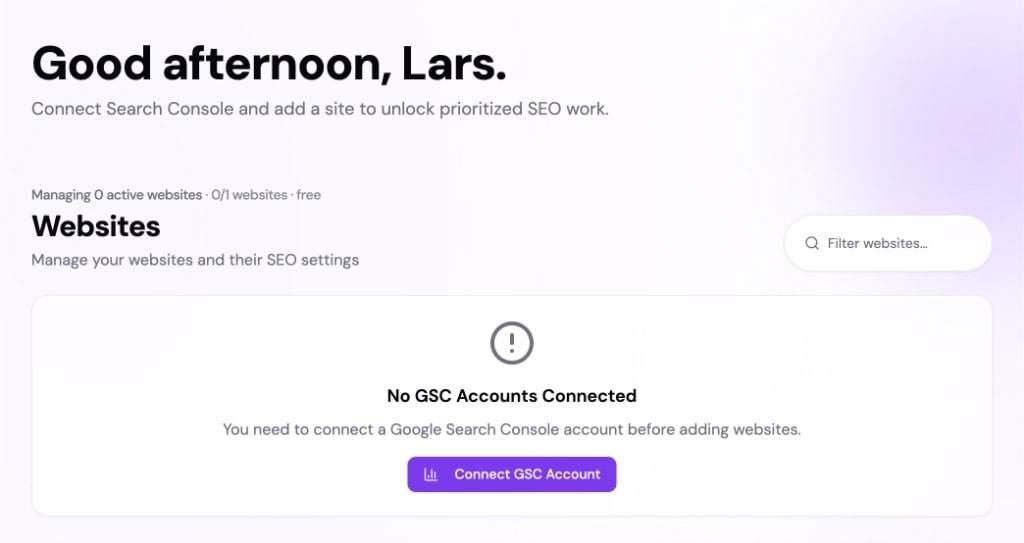
Step 1: dashboard with no GSC account yet
On a new workspace, the websites section shows that no Google Search Console account is connected yet, and the primary action is Connect GSC Account.
Step 2: connect Google Search Console
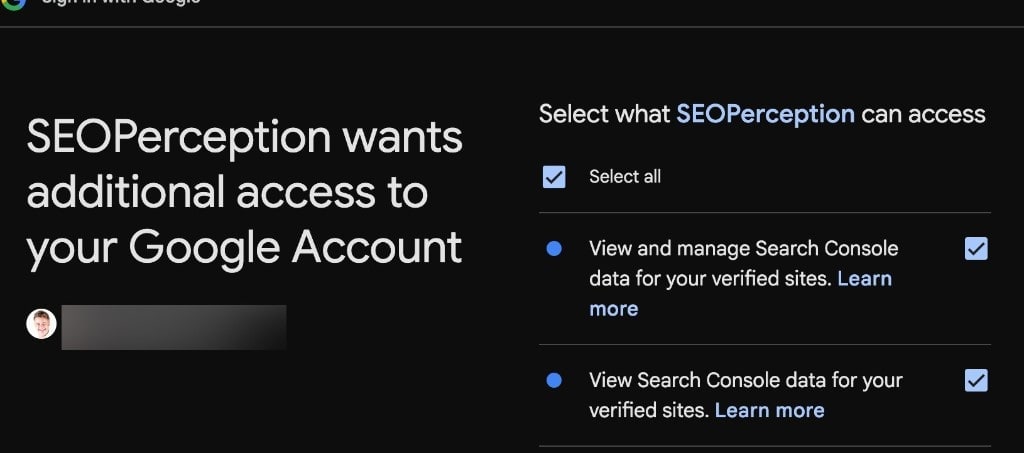
Click Connect GSC Account, complete Google consent, and return to SEO Perception. When the connection succeeds, the dashboard confirms success and the Add Website button becomes available in the websites section.
If you signed up with Google and still need to confirm your SEO Perception account before the GSC flow, see Connecting Google Search Console.
Step 3: add website(s) and let processing run
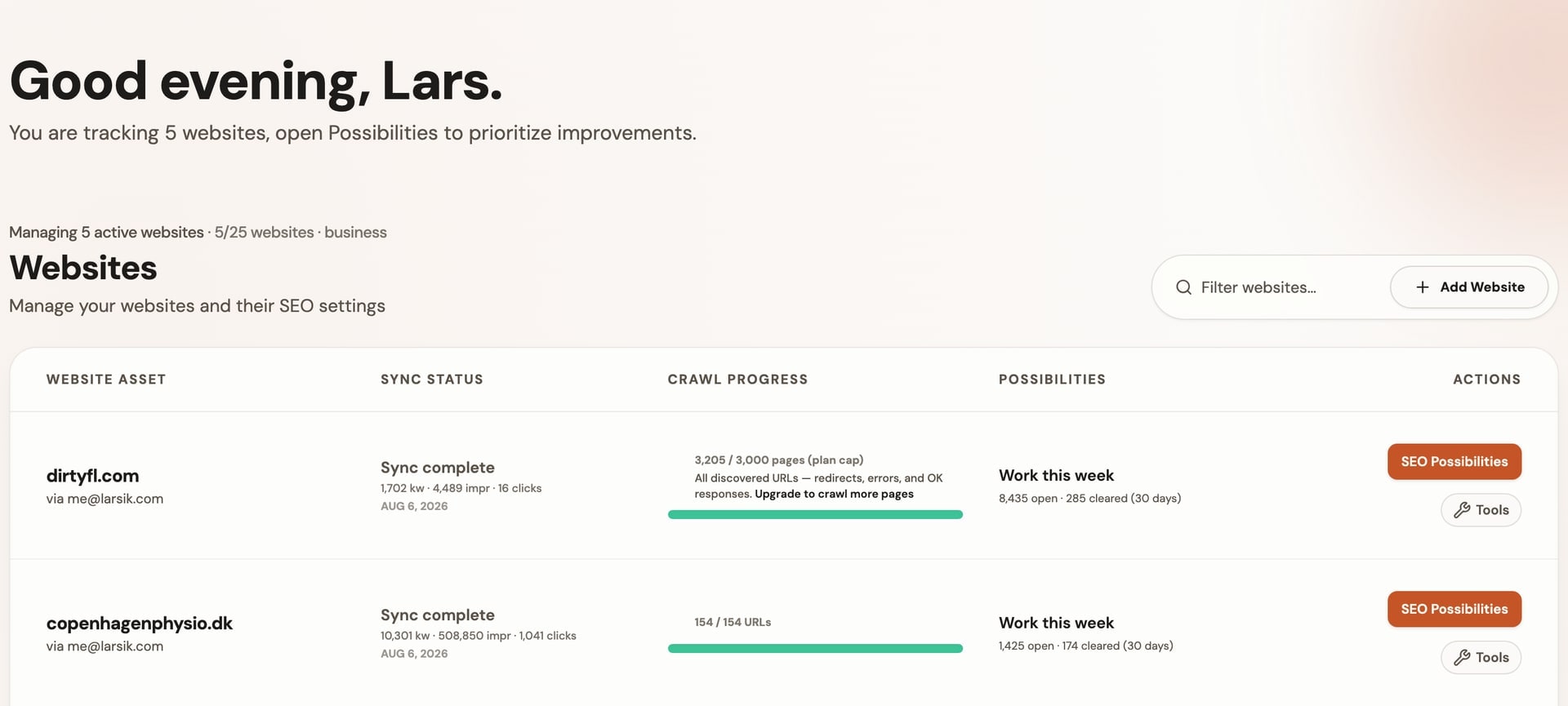
Use Add Website to select one or more properties, based on available slots in your plan. After submit, data collection and crawling start in the background. You can often start seeing early results within minutes, but wait for completion for a full picture. Initial Search Console backfill typically covers about the last 90 days of performance (configurable server-side).
For detailed walkthroughs, see Adding a website and Connecting Google Search Console.
Notifications
When imports or crawls complete, you may see updates in the notification bell and receive email updates. See Notifications for details.