Connecting Google Search Console
SEO Perception can show traffic and query context from Google Search Console (GSC) after you connect an account and add a website whose property matches the site you care about.
In the product, setup is shown as three steps; connecting a GSC account is step 1, before you add a website (step 2) and data collection (step 3). See also Getting started on the dashboard.
If you signed up with Google first
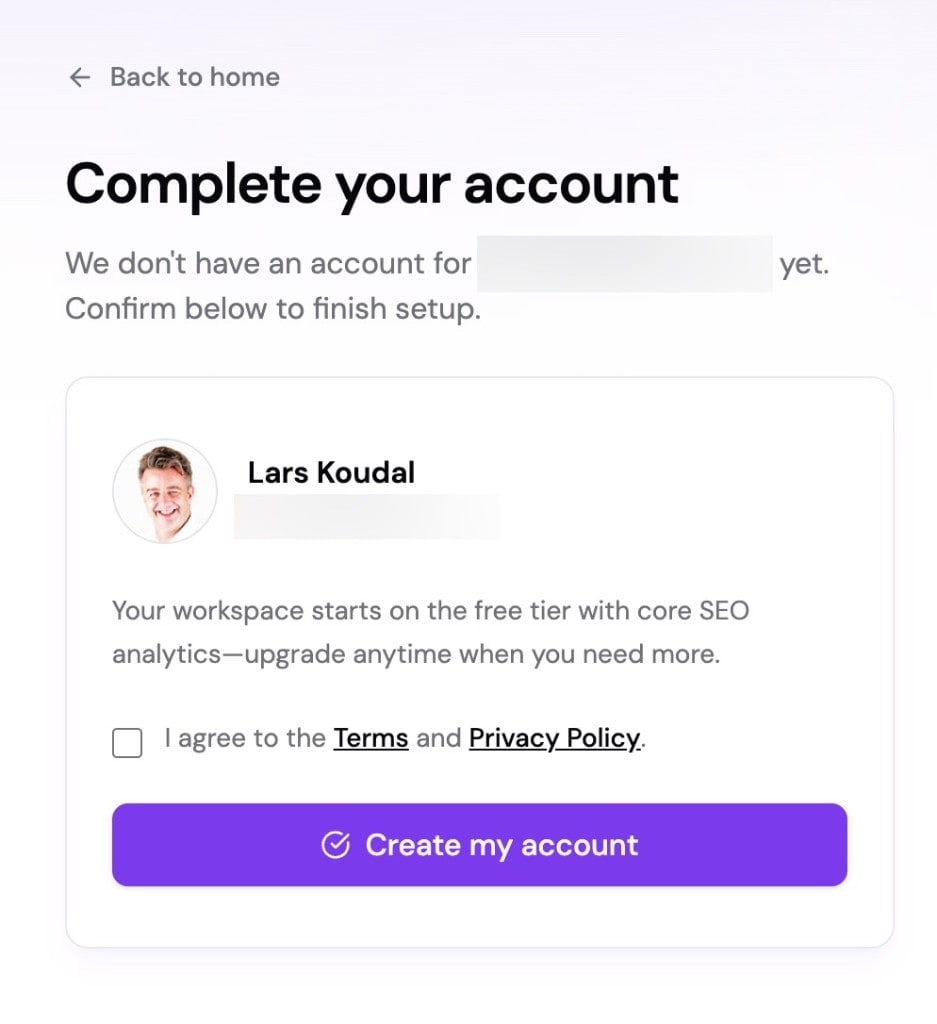
Some users who create their SEO Perception account with Google first see a Complete your account confirmation page before reaching the dashboard. Finish that confirmation once, then continue with the GSC connection flow below.
This is an SEO Perception account-confirmation step, not the Google Search Console OAuth permission step.

Before you connect in SEO Perception
The Google account you use should already have at least one Search Console property for the site you care about (added and verified in Google). If you have not set that up yet, follow Google’s help: Add a website property to Search Console first, then return here.
Property and site should match
The GSC property you authorize should correspond to the domain or URL prefix of the website you added in SEO Perception. If they do not align, metrics may be missing or misleading for that site.
When data appears
Search Console metrics are ingested and stored over time; you may not see a full history immediately after connecting. As collection runs, charts and totals fill in according to your plan’s retention. Very new properties may have limited history in GSC itself.
When you add a website, we run an initial Search Console ingestion attempt in the server before seeding the crawl from your homepage, so stored performance data is more likely to exist when pages are first evaluated. After that, scheduled GSC refreshes and the crawler run on their own timers—either pipeline can still move ahead or lag for a given URL. The website workspace surfaces both where available.
Step-by-step: connect your Google account
You need an SEO Perception account and to be signed in. Connecting Search Console sends you to Google in the same browser tab (full-page redirect); your password is never stored by SEO Perception.
-
Open the dashboard (
/dashboard) and scroll to Google Search Console accounts, or go directly to/dashboard#gsc-accounts. - Click Connect GSC Account. If you already have one connected and need another Google login, click Add Another GSC Account.
- Google shows an account chooser. Pick the Google account that has access to your Search Console properties.
- If asked, sign in to that Google account (email/password or your organization SSO).
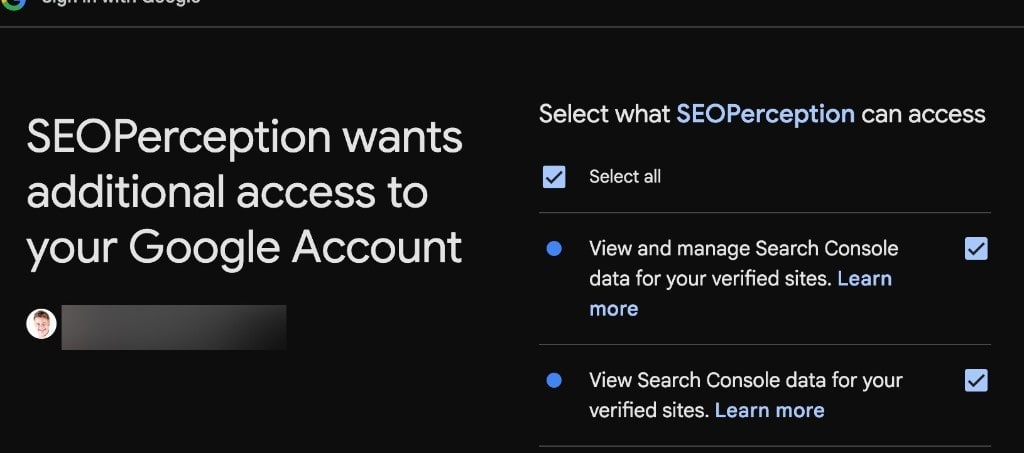
- Google shows a permissions screen asking you to allow SEO Perception to read Search Console data. Review and confirm with Allow.
-
After consent, you return to the dashboard (
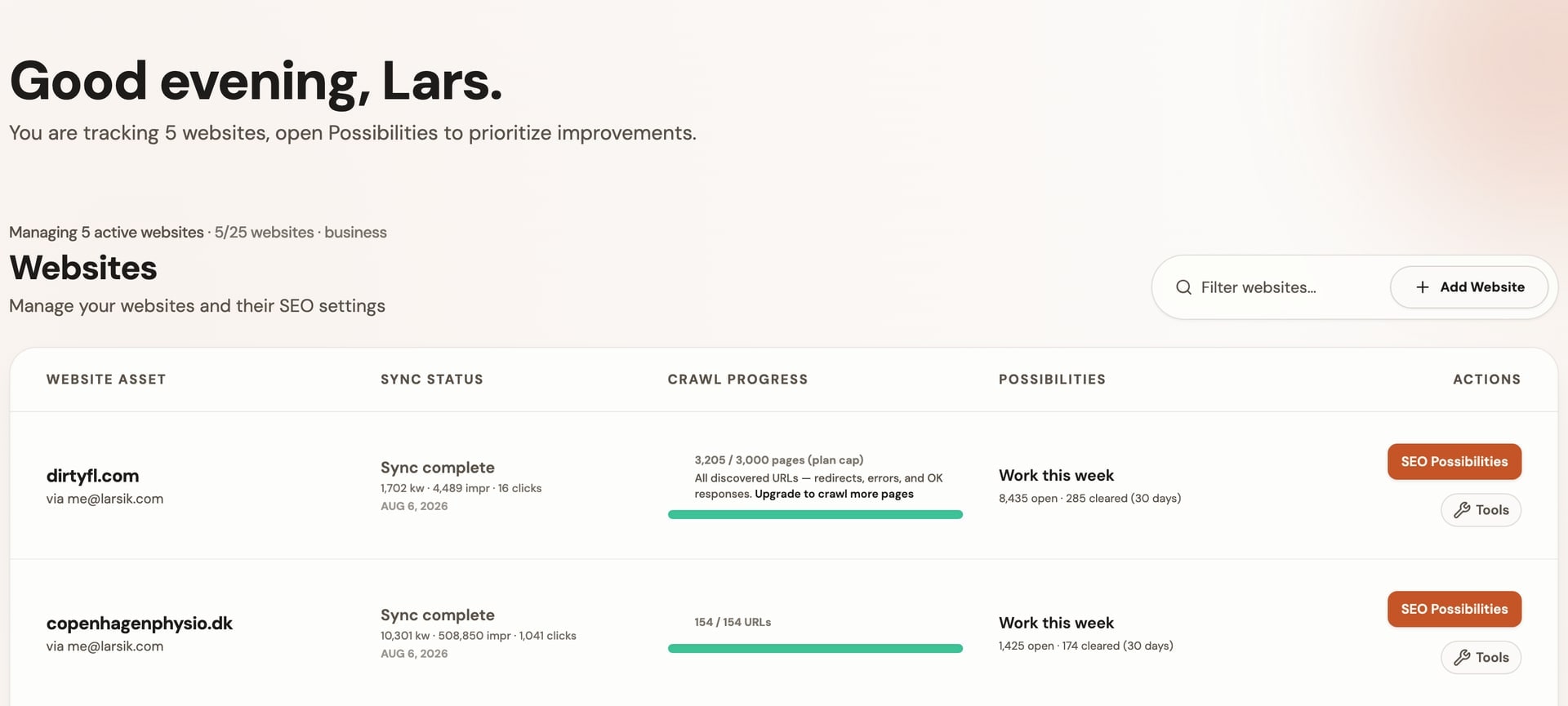
/dashboard). On success, the UI shows a clear success message and your websites section is ready for Add Website.
Add another GSC account and review properties
If your tier allows multiple connected Google accounts, use Add Another GSC Account in the same GSC accounts section and repeat the Google flow.
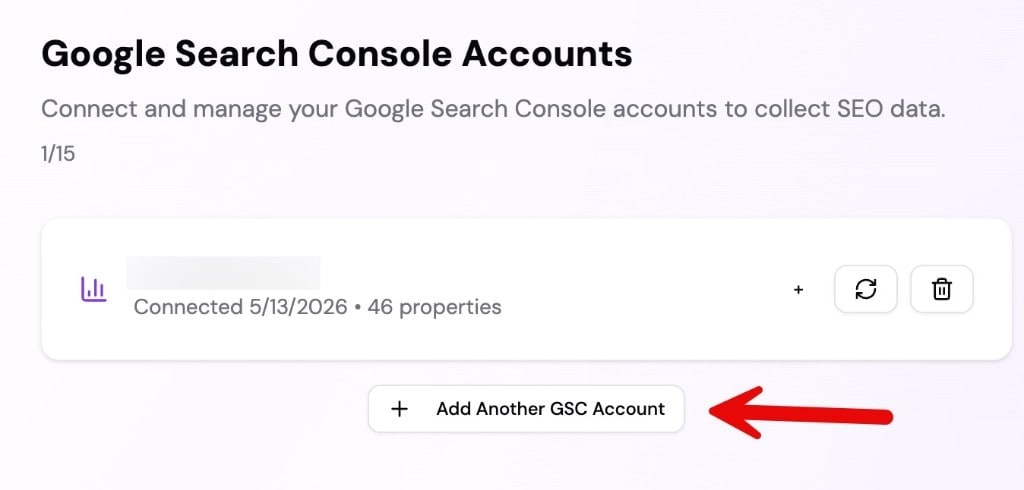
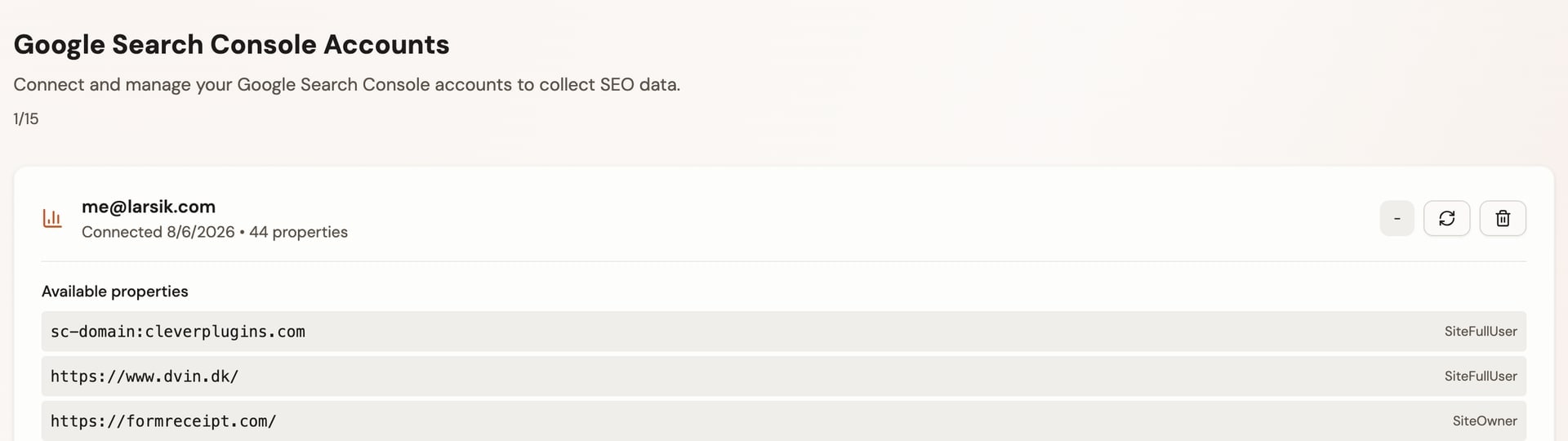
After connecting, expand an account entry to see the available properties and access roles exposed by Google for that account.
Tip: Complete Google steps in the same tab and browser profile you started from. If something fails, use
Try again from the dashboard message or reconnect from /dashboard#gsc-accounts. If metrics look wrong later,
double-check that the property you select when adding a website matches the same Search Console property.
Related articles
- Getting started on the dashboard — the three-step guide after sign-up.
- Search Console data in SEO Perception — where stored metrics appear in the UI.
- Adding a website
- A holistic approach to SEO in SEO Perception
- How the crawler works